










How To Share An Album On Pictastic.ai
Sharing an album on Pictastic.ai is a straightforward process, making it easy to collaborate with clients, team members, or partners. Whether you’re sharing photos, videos, or other media, Pictastic.ai provides a seamless way to deliver your content in a professional, cloud-hosted format. Here’s a step-by-step guide on how to share an album.
Step 1: Open Your Album
After creating an album, navigate to the Albums section in your Pictastic.ai account. Click on the specific album you wish to share.
Step 2: Locate the Share Button
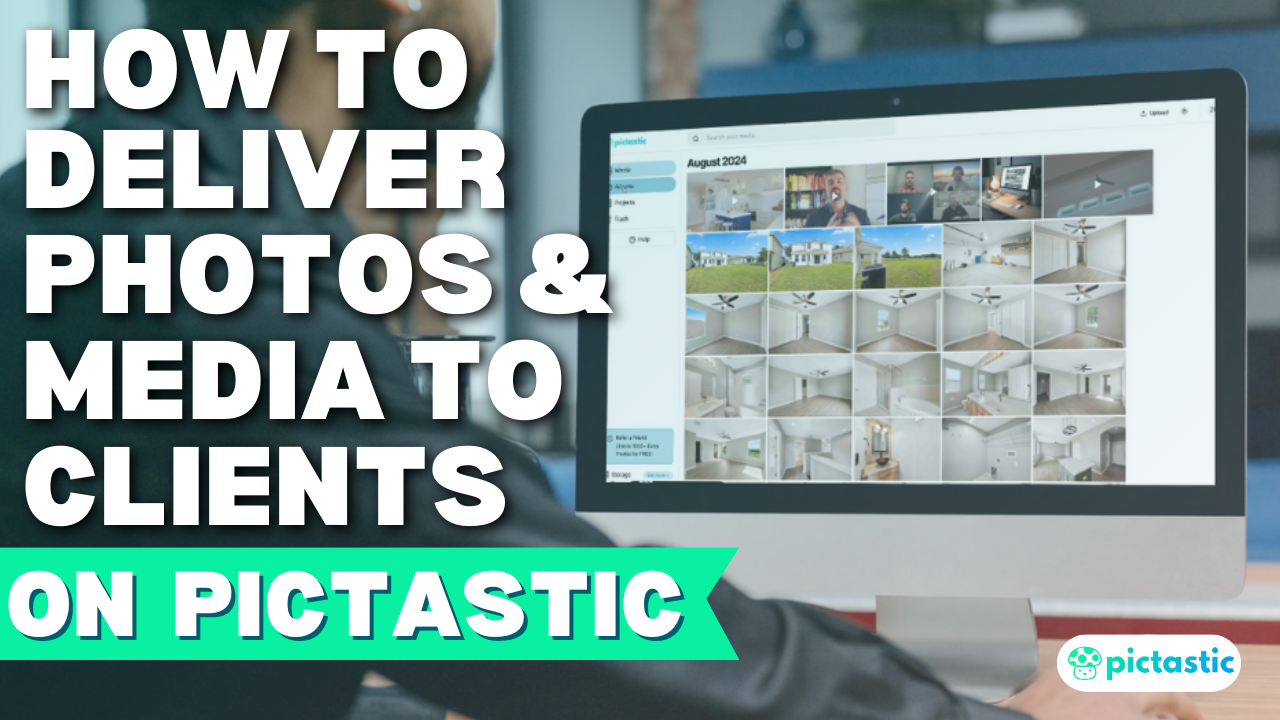
Inside the album, you’ll see all your media files—photos, videos, or other assets. On the bottom right, locate the Share Album button.
Step 3: Copy the Album Link
Click the Share Album button, and the album’s unique URL will be copied to your clipboard.
Step 4: Share the Link
Paste the URL into an email, chat, or any communication platform to share it with clients or collaborators.
What Does the Viewer See?
When someone opens the link:
- They’ll view the album without needing a Pictastic.ai account.
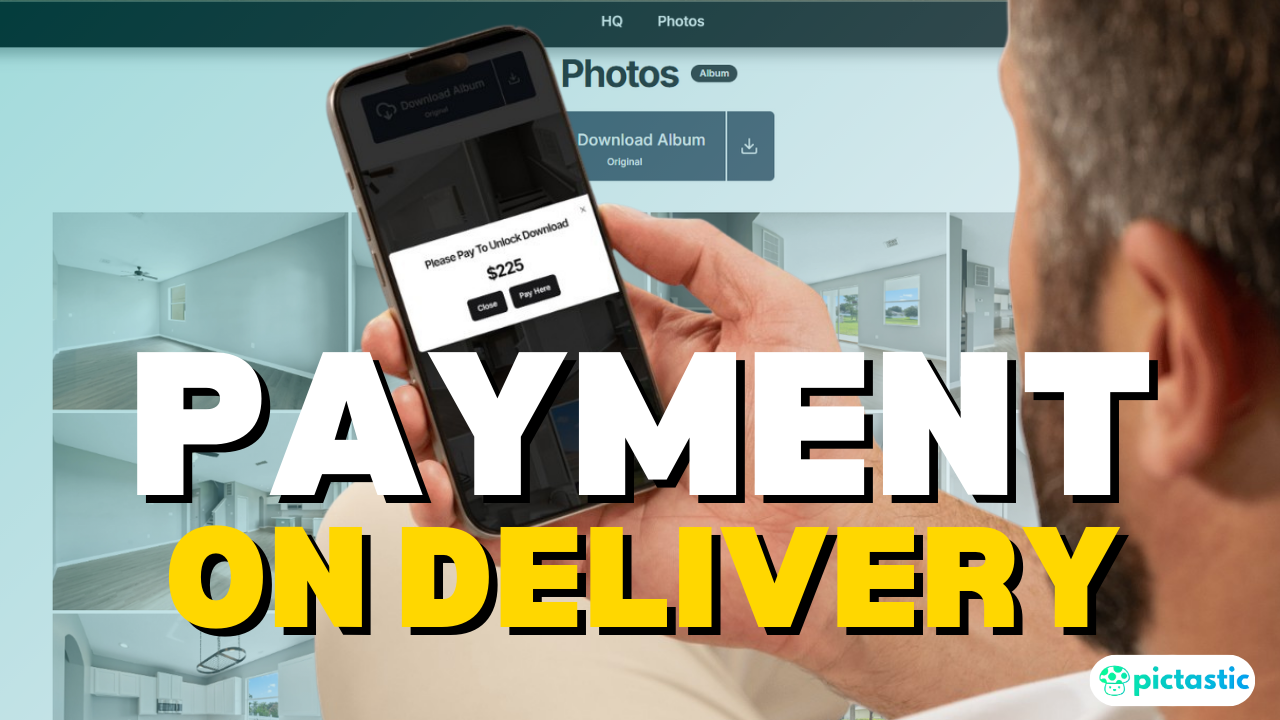
- Media files can be previewed, scrolled through, or downloaded individually or as a batch.
- The viewer sees the album title and who shared it, offering a polished, professional experience.
Why Share Albums on Pictastic.ai?
Sharing albums ensures easy collaboration, quick media reviews, and efficient file delivery. It works on desktop and mobile, making it accessible for all users.
📍 Start sharing today: https://pictastic.ai
#PictasticAI #MediaDelivery #PhotographyTools #RealEstatePhotography #ShareAlbums