











How To Create An Album On Pictastic
Creating an album on Pictastic.ai is a quick and easy way to organize your media and share it professionally. Whether you’re a photographer, real estate agent, or media team member, albums help streamline your workflow and impress clients. Follow this step-by-step guide to create and manage your albums with ease.
Step 1: Navigate to the Album Section
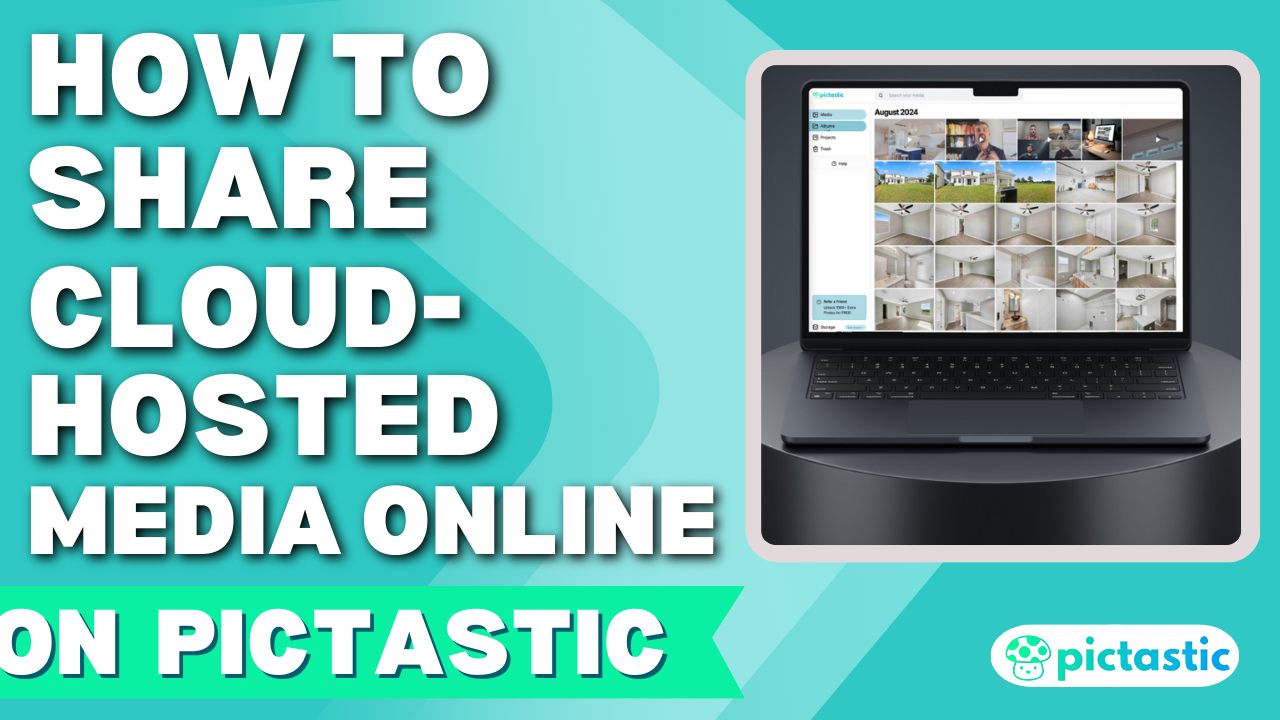
Once you log in to Pictastic.ai, locate the left-hand sidebar and click on the Albums section.
Step 2: Create a New Album
- Click Create New Album.
- Enter a descriptive title for the album.
- Click Create to save the new album.
Step 3: Add Media to Your Album
- Open the newly created album by clicking on it.
- Click Add from Media to select images or videos from your media gallery.
- Choose the files you want and click Add to Album.
Step 4: Customize Your Album
- Edit Details: Change the album title or cover image as needed.
- Share Your Album: Click the Share Album button to copy the URL and send it to clients or collaborators.
Why Use Albums on Pictastic.ai?
Albums allow you to organize media efficiently, showcase your work in a professional format, and simplify sharing. It’s perfect for photographers and real estate professionals looking to enhance their media delivery.
📍 Get started today: https://pictastic.ai
#PictasticAI #MediaManagement #PhotographyTools #RealEstatePhotography #CreateAlbums